


LogMeIn Rescue Customer
4.71.23K Reviews
App Specs
- Version
- 8.10.2-46
- Updated On
- License
- Free
- Downloads
- 1,000,000+
- Developer
- GoTo Group, Inc.
- Categories
- Business
- Platform
- Android, iOS
Screenshots
 Analysis by AppCompare
Remote support works best when the person helping you is someone you already trust. That matters more than any clever feature: this is an app for joining a support session, not a place to look for a technician or browse for help. I find that distinction useful to keep in mind before installing it, because it sets the right expectations for LogMeIn Rescue Customer.
Where a support session can get stuck
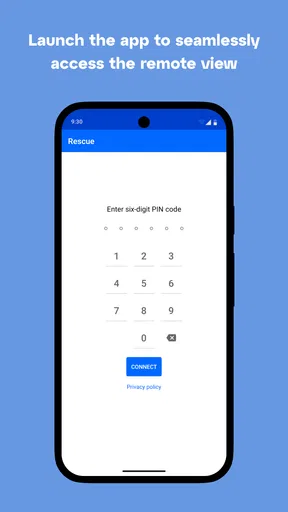
The most important step is getting the connection details from the support team you contacted. The app is useful once a legitimate technician has invited you to connect; it is not a general-purpose remote desktop tool for independently reaching another device. If you do not have a session code or instructions from a trusted support contact, installing it alone will not solve a problem.
That invitation-based process can feel like an extra hurdle when you are already frustrated, but it is also a sensible pause. Before entering a code, check that you initiated the conversation or can verify the technician through a known company contact. A convincing caller asking you to install a remote-support app is not, by itself, proof that they are legitimate. I would never use a session code sent unexpectedly by someone who contacted me out of the blue.
The app is a business support tool from GoTo Group, Inc., and it has a 4.6 average from around 5,500 ratings. That may reassure someone comparing support apps, but ratings cannot tell you whether a particular person contacting you is trustworthy. The safest decision still comes from verifying the source of the support request.
Getting Started with Ease
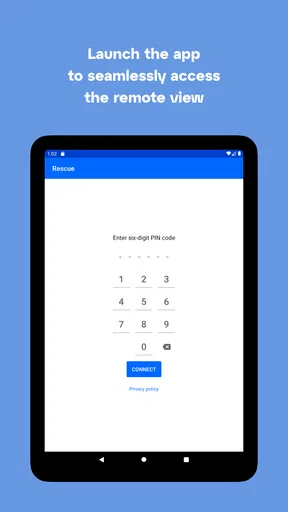
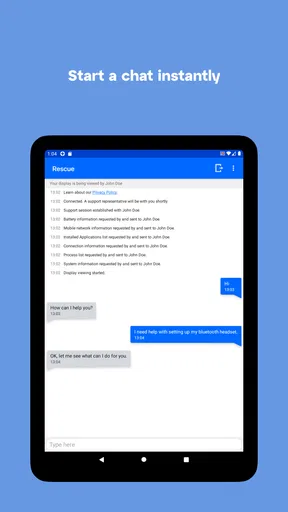
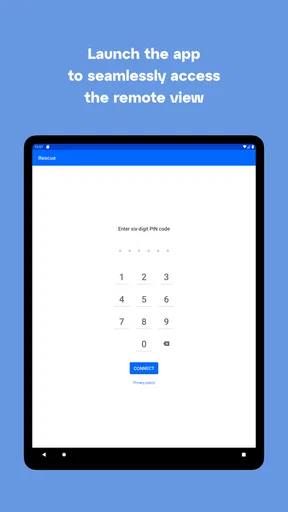
First things first, downloading and setting up LogMeIn Rescue Customer is a breeze. Whether you’re on Android or iOS, it’s just a quick trip to your app store and a few taps away. Once installed, the app guides you through a straightforward process to connect with your support technician. No tech jargon, no fuss. Just enter the code provided by your support team, and bam, you’re connected.
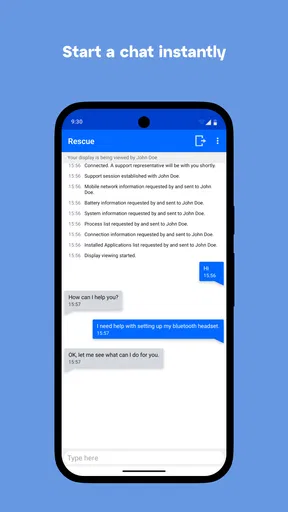
What really stands out is how intuitive the interface is. I mean, we’re talking about an app designed for troubleshooting, yet it feels like I’m just chatting with a friend. The simplicity is refreshing, especially when you’re already stressed about a tech issue.
Setup checks that prevent avoidable delays
When a connection does not go smoothly, I would start with the simple checks rather than repeatedly entering the same details. Make sure the installed app is the customer-facing Rescue app your technician asked you to use, and confirm the session code directly with them if it has been mistyped or is no longer accepted. A code is part of joining a session, not a substitute for confirming who is on the other end.
Worth Reading Before You Choose

EA SPORTS FC Mobile 26 Is a Bigger Football Game, but It Takes Time

Flipboard Shows What News Apps Must Do Beyond the Feed

Switching to Android Auto Means Rethinking Your Driving Routine

Google Calendar Makes a Crowded Week Easier to Manage

Ludo King Makes the Most of the Minutes Between Plans

Baby Panda World Brings Quick Play to Modern Phones, but Its Game Library Feels Busy
It also helps to have the device you need assistance with in front of you and enough time to follow the technician’s instructions. If you are switching between a phone call, a message, and the app, keep the support contact’s verified details handy. That small bit of preparation reduces the chance of losing track of who asked you to do what during a stressful moment.
Rescue is free to install, has an Everyone content rating, and runs on Android 7.0 or later. Its current version is 8.9.2-47; if an installation or connection issue persists, checking that your device meets the minimum OS requirement and that the app is up to date is a reasonable first step. The app has been available since January 28, 2011, and has more than a million installs, but broad adoption does not remove the need to follow a trusted technician’s instructions carefully.
Features That Make Life Easier
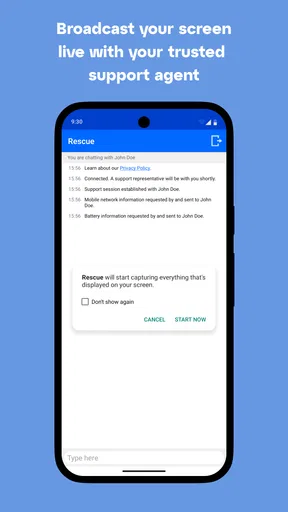
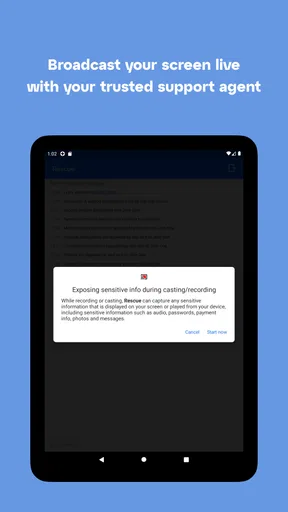
Now, let’s talk features. This app isn’t just about remote access—it’s packed with tools that make support sessions effective and efficient. For starters, technicians can remotely control your device. Yes, it sounds a bit daunting, but it’s actually super handy. They can see what’s happening in real time, pinpoint issues, and fix them while you sit back and sip your coffee.
And it doesn’t stop there. The app allows file transfers, so if there’s a need to send or receive files during the session, it’s all covered. No more clunky email attachments or third-party apps. Everything you need is right there.
How I would use control and file sharing
Remote control is most valuable when describing a problem would take longer than showing it. For example, if a work app keeps displaying an error after you sign in, a technician may be able to see the sequence that leads to it instead of relying on a vague description. I would still stay present, watch what is happening, and ask the technician to explain any action that changes settings or handles personal information.
File transfer can also be more focused than sending an attachment through a personal email account, especially when the support team needs a particular diagnostic file or document. The trade-off is that transferring a file gives the session a more direct role in handling your data. Before sharing anything, confirm what the file is, why it is needed, and whether it contains information unrelated to the problem. If it does, ask whether a narrower or redacted file will do.
That is one reason I would treat this as a supervised support session rather than a hands-off repair service. The technician may be able to operate the device, but you remain the person best placed to notice unexpected prompts, unrelated files, or changes that do not match the issue you reported.
Security – Because It’s a Big Deal
I know what you’re thinking: remote access sounds risky. But let’s talk security. LogMeIn Rescue Customer takes your privacy seriously. Every session is encrypted, and you have full control over what the technician can access. Plus, you can disconnect anytime. It’s like having a safety net, ensuring your data stays yours.
For those of us who are a bit paranoid about security (guilty!), this peace of mind is invaluable. It’s clear they’ve put a lot of thought into making sure users feel comfortable and secure.
When another option is the better fit
Rescue makes sense when an organization already provides support through a technician who can guide the session. It is less suitable if you simply want to help a family member on your own, share a screen for a meeting, or keep a permanent remote connection to your devices. Those jobs call for tools designed specifically for personal remote access or screen sharing, rather than an app centered on a support session.
Compared with ordinary phone or email support, a live session can save time when the problem is visual or involves several settings. Compared with describing every tap over a call, a technician seeing the issue directly may reduce guesswork. But remote help is not automatically better: for a simple password question or a brief explanation, a phone call or written instructions may be quicker and give you more independence.
My practical rule is to use the least access needed. If the technician can diagnose the issue by looking at the screen, there may be no reason to transfer a file. If a setting needs to change, ask what it does first. You can stop the session if the requested access or action does not make sense to you.
Real-Life Scenarios
Okay, so how does this all play out in real life? Imagine you’re in the middle of a big project, and your device decides to throw a tantrum. Instead of panicking, you can just fire up the app and get help instantly. I tried it out when my email client went haywire, and it was like having a tech-savvy buddy who just knew what to do.
Another neat aspect is how it caters to businesses. Companies can integrate it into their support systems, making customer service more efficient. It’s not just for individual users but also a fantastic tool for businesses looking to enhance their support capabilities.
If the problem continues after connecting
A successful connection does not guarantee that every issue can be fixed remotely. If the technician cannot reproduce the problem, or the device behaves differently after the session ends, describe exactly what changed and when. Keeping the explanation focused—what you were doing, what appeared, and what happened next—can help the support person distinguish the original fault from a connection or setup snag.
Sometimes the app is not the cause at all. A slow network, a device-level restriction, an outdated operating system, or a problem inside the service you are trying to use can all complicate remote troubleshooting. I would avoid changing several settings at once just to make a session work; that can create new symptoms and make it harder to identify the original one. If a connection fails, ask the technician for a safe next step through the contact channel you already trust.
Who will get the most from it
This is a good fit for customers who have a real support request and want a technician to see the problem rather than rely on a long description. It can also suit businesses that need a structured way to guide customers through device troubleshooting. People who are uncomfortable with remote control can still benefit if they set clear boundaries, remain present, and disconnect when they no longer want help.
I would skip it if you have no trusted support contact, are looking for a general remote-access utility, or would rather troubleshoot independently. It is also not the right answer to every technical problem: some issues are better handled with written guidance, a phone conversation, or in-person service. The app’s value depends on the support relationship around it, not just on installing it.
The Final Word
So, is LogMeIn Rescue Customer worth your time? Absolutely. It’s the perfect blend of functionality and simplicity. Whether you’re tech-savvy or not, it makes getting help easy and stress-free. The app is reliable, secure, and does exactly what it promises—rescuing you from tech troubles.
If you’re always finding yourself in need of tech support, or you just like the idea of having a safety net, give it a go. You might just find it’s the app you didn’t know you needed.
My recommendation comes with one important condition: install it when a known support team asks you to, and stay engaged throughout the session. Used that way, it can make a confusing device problem easier to explain and resolve. Used without a verified reason to connect, it is unnecessary. That distinction makes this a practical support companion for the right situation, rather than an app I would keep opening without a specific need.
Pros
- User-friendly interface
- easy navigation.
- Supports multiple device connections.
- Real-time screen sharing feature.
- Secure and encrypted data transfer.
- Quick setup with minimal configuration.
Cons
- Requires stable internet connection.
- Limited features in free version.
- Can be resource-intensive on devices.
- Occasional connectivity issues reported.
- Subscription can be costly for small businesses.
FAQs for LogMeIn Rescue Customer
What is LogMeIn Rescue Customer used for?
LogMeIn Rescue Customer is a remote support application that allows technicians to access and troubleshoot devices from anywhere. It's especially useful for IT support teams needing to resolve technical issues quickly without being physically present. This app ensures that users receive timely assistance, minimizing downtime and improving efficiency.
How secure is LogMeIn Rescue Customer?
Security is a top priority for LogMeIn Rescue. The app uses 256-bit SSL encryption to protect all data during remote sessions. Moreover, it requires explicit user permission before any session begins, ensuring that users maintain control over their devices. It's a trusted tool among IT professionals for secure remote support.
Is LogMeIn Rescue Customer compatible with all devices?
LogMeIn Rescue Customer is designed for broad compatibility, supporting most Android and iOS devices. It works efficiently across various operating systems, ensuring that technicians can assist users regardless of their device type. However, it's always wise to check the specific OS version requirements before downloading.
Do I need a subscription to use LogMeIn Rescue Customer?
While the LogMeIn Rescue Customer app itself is free to download, it is part of the LogMeIn Rescue service, which requires a subscription. Organizations typically purchase licenses for technicians who will use the app to provide support. Users seeking support do not need a subscription, only the app installed.
What kind of technical support issues can be resolved with LogMeIn Rescue Customer?
LogMeIn Rescue Customer can address a wide range of technical issues, from software installations and updates to troubleshooting network connectivity problems. It's also effective for diagnosing hardware issues, offering comprehensive support capabilities. Technicians can remotely control the device, run diagnostics, and implement solutions efficiently.


